Rack Layout & Panels
Rack elevations with patch panels and fiber LIUs — drawn, saved, exported, and priced into the BOM.
Rack Layout turns the devices on the canvas into rack elevations — the drawing the person standing in the room actually installs from. Every device is sized in rack units from its model (a Nexus 9508 takes its real 13U, a fixed switch its 1U), redundant pairs are split across racks so one rack failure cannot drop both, and each device carries a criticality dot (click to cycle critical → important → standard).
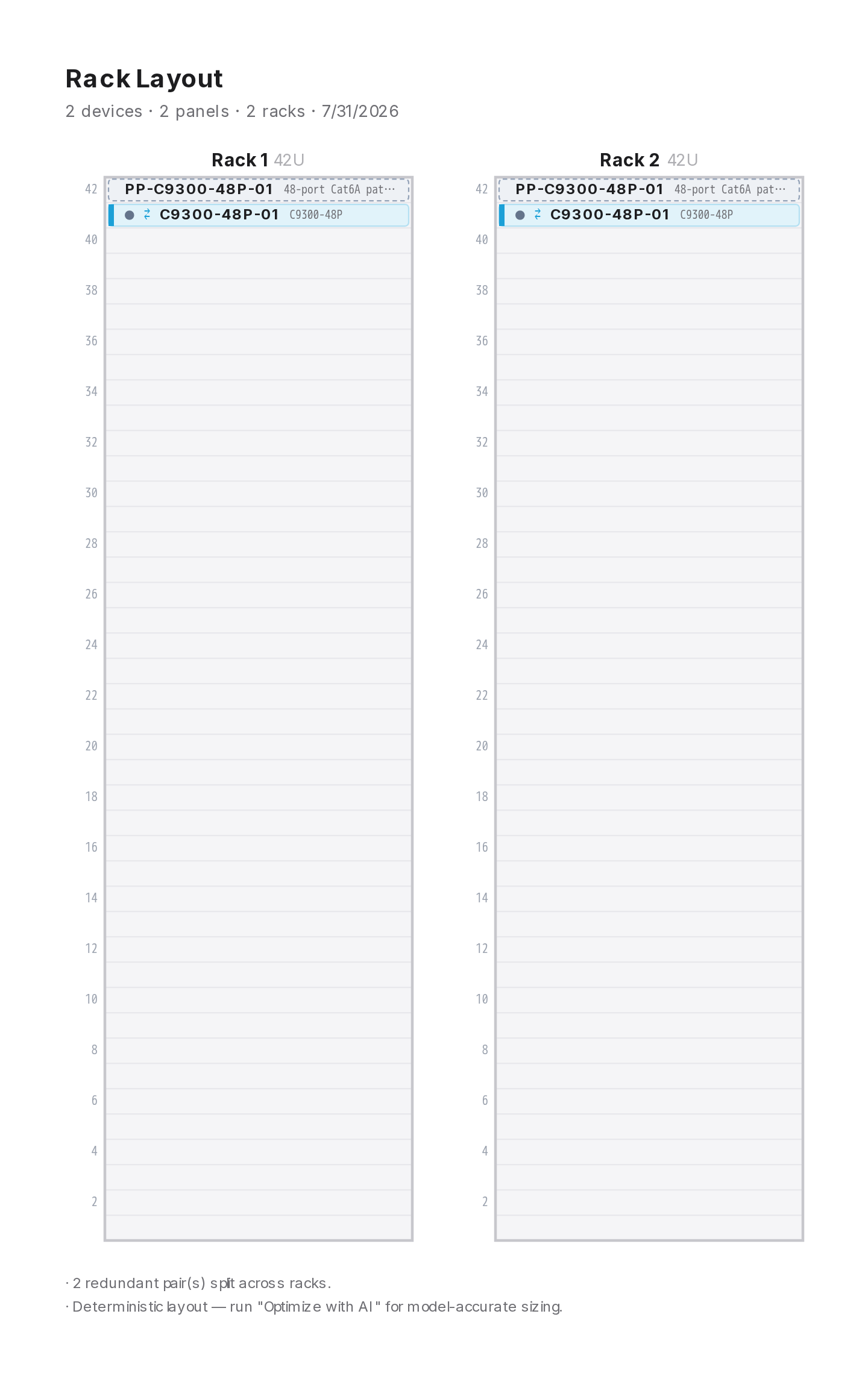
Patch panels & fiber LIUs — drawn for you#
The elevation includes the passive hardware a real rack needs, derived from the design itself:
- Copper — a switch with RJ45 access ports gets a matching Cat6A patch panel seated directly above it for the user desk cabling: 48 copper ports → a 48-port panel, 24 → a 24-port panel, one more panel per additional 48 (a fully loaded modular campus chassis gets the full stack it needs). Fiber-faceplate switches — DC leaves, cores, aggregation — correctly get nothing: server and fabric runs are not desk drops.
- Fiber — a rack containing a device with a fiber link to an ISP(an Internet/MPLS/VPN cloud or an ISP router) gets one 24-port LC fiber panel — the LIU where the carrier's strands terminate. One per rack, however many ISP-facing devices share it. A copper broadband handoff gets no LIU — the panel appears only when the uplink is actually fiber.
- Inter-switch and inter-router links are cabled directly — no panel is inserted between devices.
Panels are derived, not drawn by hand: drag a switch to another rack and its panel follows; move the last ISP-facing device out of a rack and the LIU goes with it. They appear in the drawer, in the PNG/PDF export, and as a PANELS section in the Bill of Materials — but never as canvas nodes.
The layout is saved#
Apply to devices commits the layout: each device keeps its rack and U position (visible on the General tab as Rack and Location), and reopening the drawer shows exactly the layout you saved — including your drag adjustments — instead of recomputing one. Devices added since are placed into free space automatically and noted. Rack names you type by hand (RACK-A01) survive: they become the rack's identity rather than being renamed on the next Apply. Changing the rack height or count asks for a fresh layout; Apply saves it. And Apply is undoable — ⌘Z restores the previous layout and placements together.
Deterministic first, AI when you want it#
The drawer always renders instantly from a deterministic packer — offline, reproducible, no account needed. On paid plans, Regenerate with AI asks a model to arrange the racks like a facilities engineer: top-of-rack leaves above their servers, spines spread across racks, heavy chassis low, and space reserved above each switch for its panel.
Multi-site designs#
Racks are physical rooms, so the drawer racks one site at a time— pick the site in the toolbar. Each site keeps its own racks; racking one site never touches another's, and the BOM counts panels per site so two buildings' LIUs never collapse into one line.
Export#
PNG and PDF render the elevation from the model itself — crisp at any size, vector in the PDF, with panels drawn dashed so passive hardware reads at a glance. The export is print-palette, independent of your on-screen theme.